iPhone and iPad
- A keyboard that types like Apple's, with a v2t mic key: tap it, talk, tap Done, and v2t types the text where your cursor was.
- v2t transcribes speech on the device, and the audio never leaves it.
- It is free on the App Store.
Where to get it
Install v2t from the App Store. Every change goes to TestFlight first, for the testers the maintainer invites, and reaches the App Store in a later release. This page describes the app as of 6 November 2026. Send problems as a GitHub issue, or through TestFlight's Send Beta Feedback if you test it there.
Will it work on my device?
- Installs on: any iPhone or iPad on iOS 26 or later, which rules out the iPhone XS, XR and older. No iPad has been tried.
- Recommended: an iPhone that can run Apple Intelligence: the iPhone 15 Pro and Pro Max, the iPhone 16 and 17 families, 16e, 17e, Air, Duo, and 18 Pro and Pro Max. These get the more accurate speech model and cleanup.
- Transcription only, untested: the iPhone 13 and 14 families, iPhone 15 and 15 Plus, and iPhone SE (3rd generation). Dictation works, without cleanup, but no one has tested it on these phones; the app says "Not yet tested on this iPhone model".
- Dictation not supported yet: the iPhone 11, 11 Pro and 11 Pro Max, iPhone SE (2nd generation), and the iPhone 12, 12 mini, 12 Pro and 12 Pro Max. These phones have not passed a test run. The app offers no model download and says "Dictation isn't supported on this iPhone yet. The keyboard still works for typing."; the keyboard's mic opens that message. The same goes for the iPad mini (5th generation), iPad Air (3rd and 4th generation), iPad (8th, 9th and 10th generation), iPad Pro 11-inch (1st and 2nd generation) and iPad Pro 12.9-inch (3rd and 4th generation).
- Measured so far: the speech and cleanup models on one iPhone 16 Pro, in a separate benchmark app, and the app itself on an iPhone 17 Pro (TestFlight build 1). No result from build 3, the one described here, has been reported from a phone yet. No other iPhone model has been tested. v2t has never run on an iPad, and the project will claim iPad support only once an M-series iPad and the iPad mini (A17 Pro) pass an end-to-end test.
The app picks the model for you. It asks iOS whether the device can run Apple Intelligence and makes one choice:
| This device | Speech model | Cleanup |
|---|---|---|
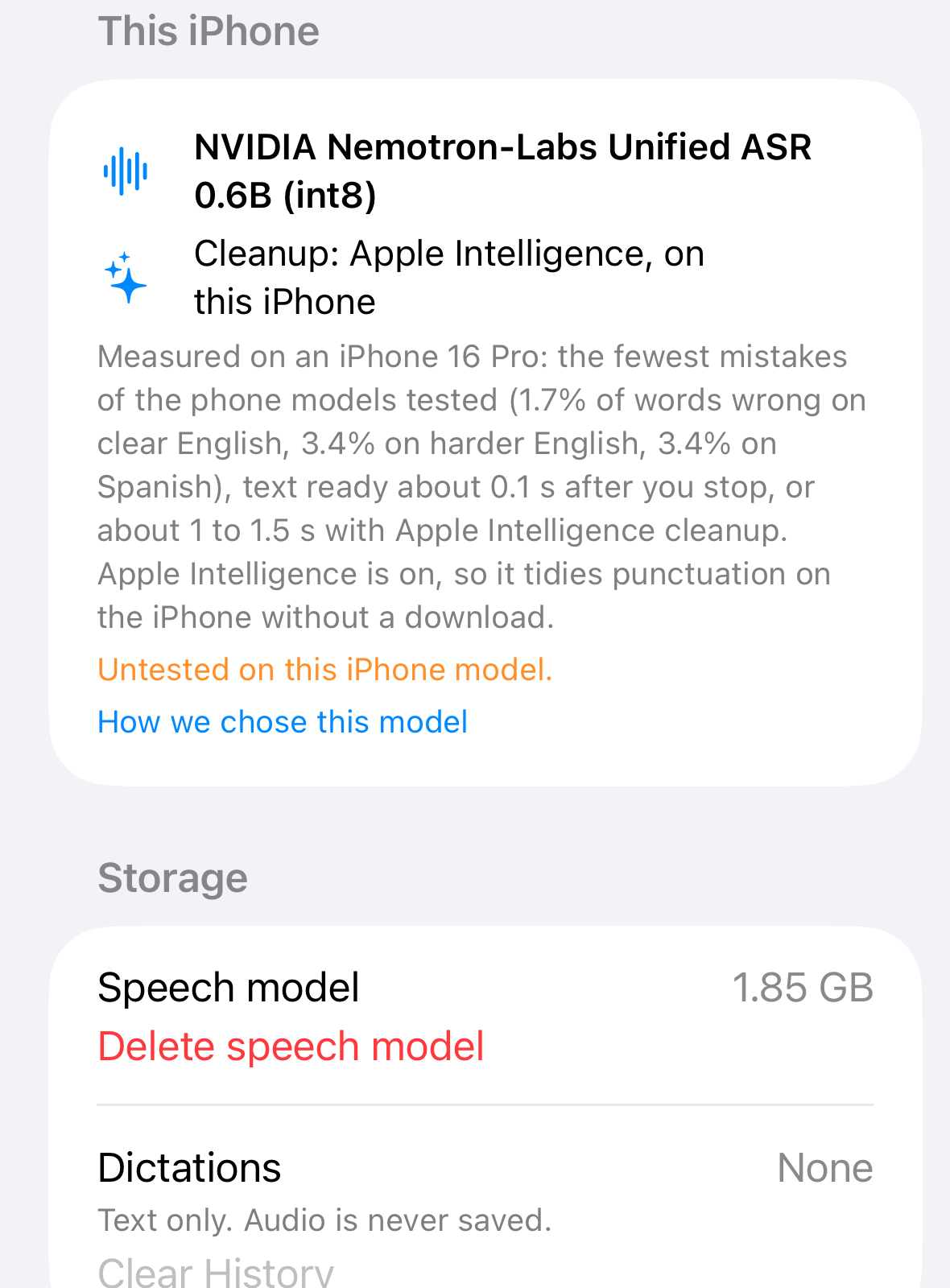
| Can run Apple Intelligence | NVIDIA Nemotron-Labs Unified ASR 0.6B (627 MB download) | Apple Intelligence, when it is turned on in Settings |
| Cannot (iPhone 15 and 15 Plus, the iPhone 13 and 14 families, SE 3rd generation) | NVIDIA Parakeet TDT 0.6B v3 (630 MB download) | None, only your dictionary's replacements |
| iPhone 11 and 12 families, SE 2nd generation | None: dictation is not supported yet | None |
Older phones get Parakeet, which makes a few more mistakes (see Benchmarks), because the int8 build of Nemotron's sibling model failed to load on the A16 chip (as in the iPhone 14 Pro and 15) (FluidAudio #828). Nemotron itself has not been tried there. iPads follow the same rule. The app's This iPhone (or This iPad) section shows what your device got and why, says so when your iPhone model is untested, and links to How we chose this model.
Set up
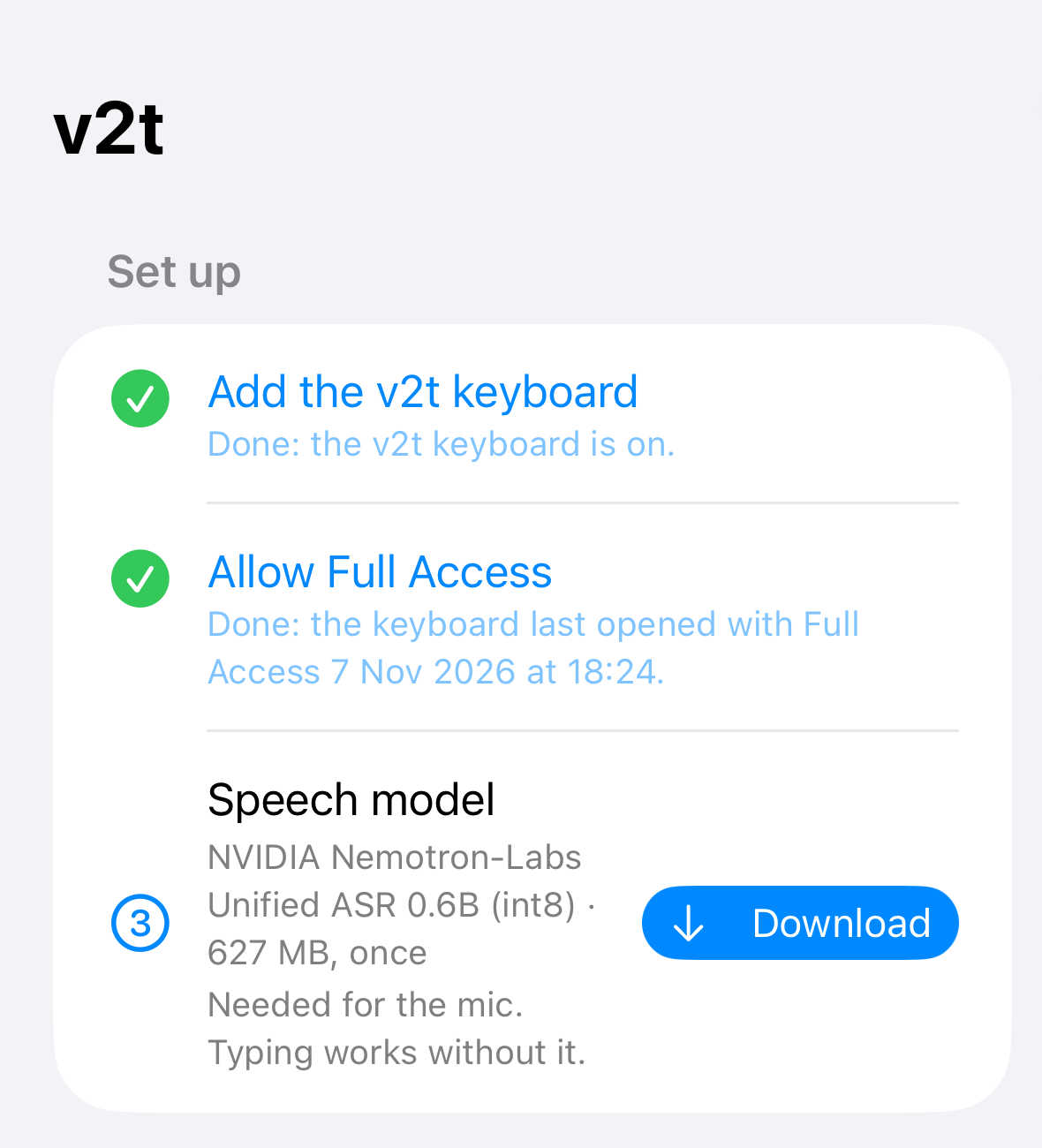
- Install v2t from the App Store and open it. The first time, About v2t says what the app does; tap Continue for the setup list (its About v2t row at the bottom opens the page again). Tap Download next to Speech model (about 630 MB, once). The mic needs it; typing doesn't. When the row says Ready, transcription works offline.
- Tap Add the v2t keyboard. It opens Settings: go to v2t › Keyboards and turn on v2t. (General › Keyboard › Keyboards › Add New Keyboard does the same.)
- On the same page, turn on Allow Full Access and confirm. The keyboard needs Full Access to ask the app to record; without it, the mic key does nothing. Nothing you type leaves the device.
- Back in v2t, tap the Try it field and switch to the v2t keyboard with the globe key. iOS does not tell an app whether its keyboard is on, so the app's checklist ticks its first two rows only once the v2t keyboard has opened with Full Access.
- Turn on Mic ready for the keyboard, and allow the microphone when iOS asks. The microphone session is now on, so your first dictation records without the trip to the app described below.
Dictate
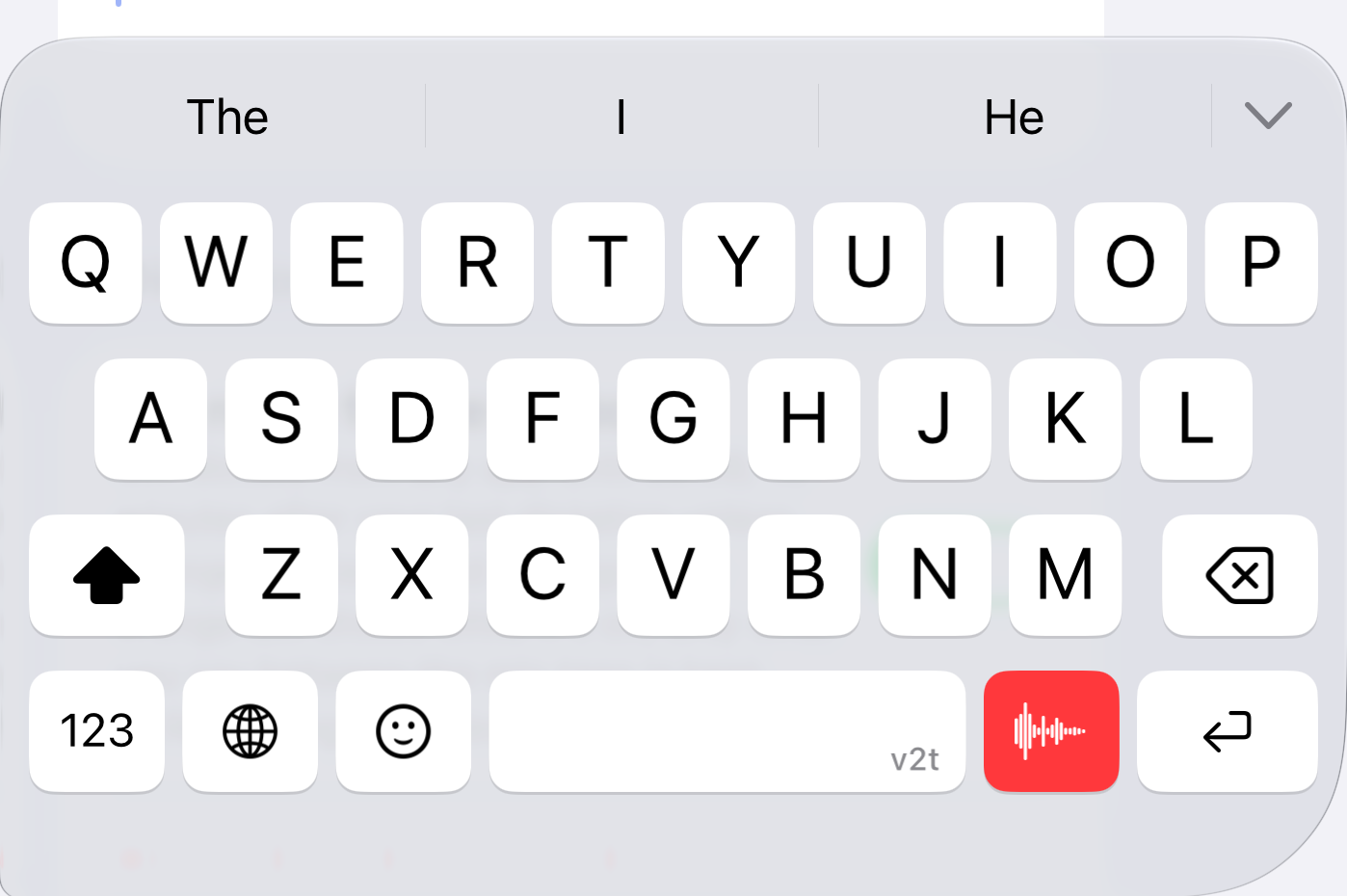
Tap the red v2t mic key (on the iPhone, to the left of return).
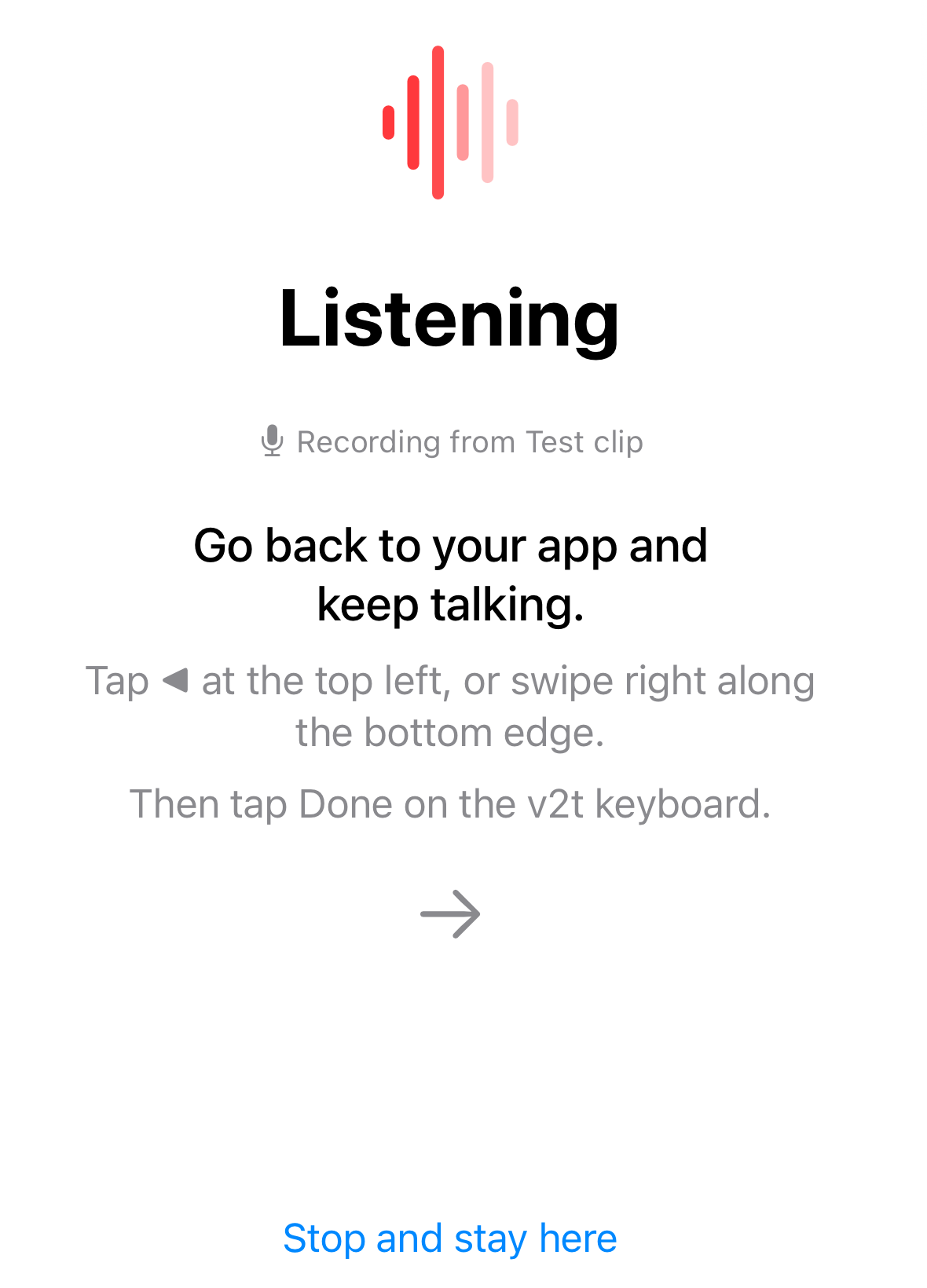
When no microphone session is on, the v2t app itself opens, because iOS gives keyboards no microphone. It is already listening: go back to your app (tap ◀ at the top left, or swipe right along the bottom edge) and keep talking. iOS gives v2t no way to send you back. From then on the microphone session stays on, and the mic key records without leaving your app.
sequenceDiagram
    participant K as v2t keyboard, in your app
    participant A as v2t app
    K->>A: first mic tap opens v2t
    A->>A: starts the microphone session and records
    Note over K,A: you go back to your app and keep talking
    K->>A: Done
    A->>K: the text, typed where you were
    Note over K,A: later mic taps record without leaving your app
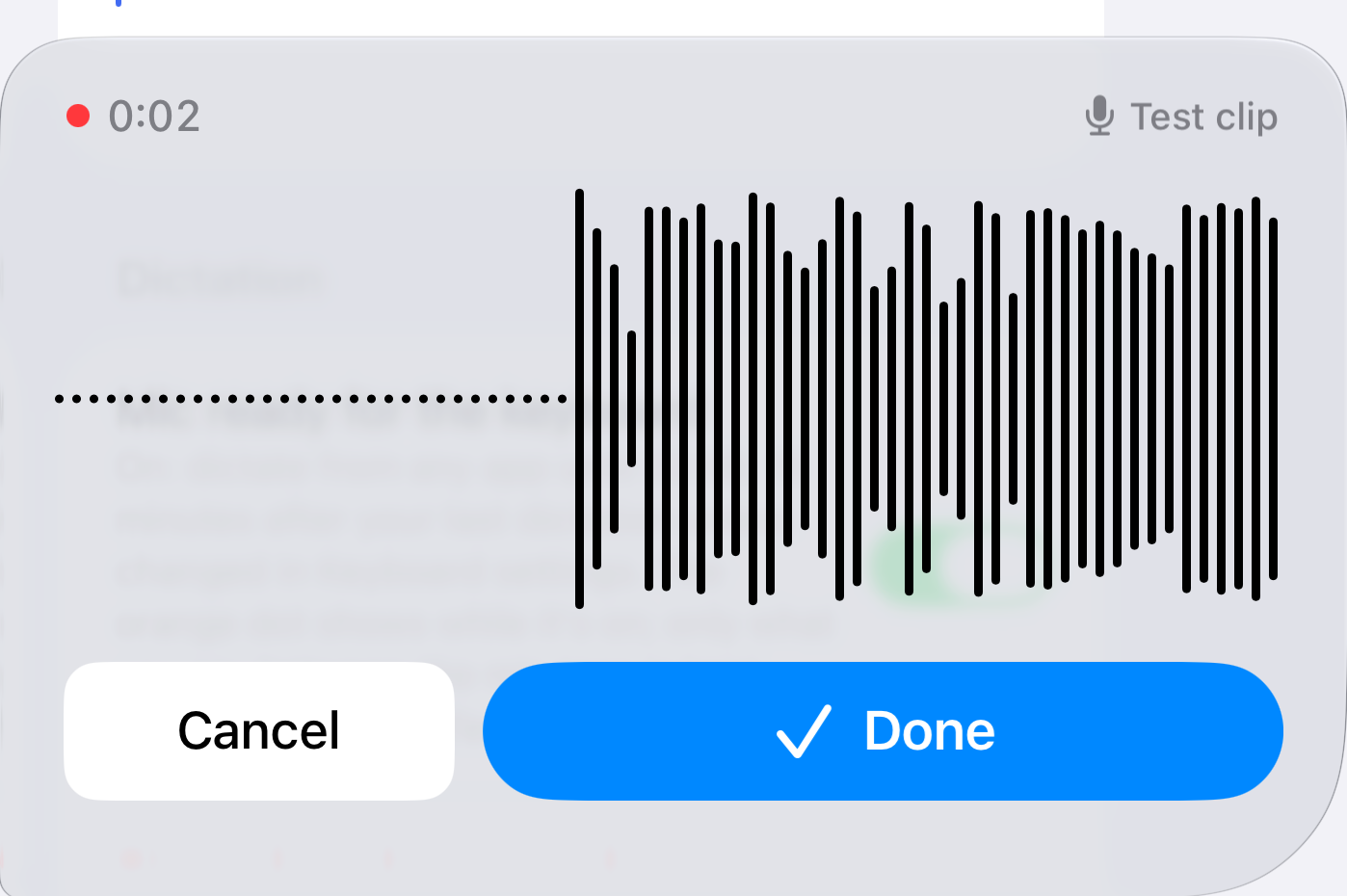
While you talk, a waveform, a timer and the name of the microphone in use cover the keys. Tap Done to finish: the keyboard shows "Transcribing…", then "Cleaning up…" if cleanup is on, then types the text. A dictation over about 15 seconds is transcribed in pieces while you talk, so only the last piece is left after Done. Cancel stops without typing anything, though v2t still saves the dictation in History. Cancel stays on screen while v2t transcribes or cleans up; tapping it then stops that work, and v2t keeps nothing of the dictation.
The microphone session
- iOS shows the orange microphone dot while the session is on. v2t keeps only what you say between tapping the mic and tapping Done or Cancel; it records and saves nothing else.
- Microphone, under the mic switch, picks where v2t records from. This iPhone (the default) uses the phone's own microphone even with AirPods connected, so music in other apps keeps playing as it would without v2t. Connected headset uses AirPods or a wired headset; with AirPods, music drops to call quality while the session is on. The app and the recording view show the microphone's name. None of this has been checked on a phone yet.
- The session turns off 15 minutes after your last dictation. Change that with Keep the mic ready for, just under Mic ready for the keyboard: 5 minutes, 15 minutes, 1 hour, or until you turn it off yourself, as below. A dictation still being transcribed by then is stopped with it.
- To turn it off now, open v2t and tap Stop microphone session, or turn off Mic ready for the keyboard. This also stops a dictation still being transcribed, which is then lost. The next mic tap opens v2t again.
What happens to your words
flowchart LR
R[Recording] --> S[Speech model] --> C[Cleanup, if on] --> D[Replacements] --> T[Typed and in History]- Cleanup runs only on a device that can run Apple Intelligence, with Apple Intelligence turned on. It adds punctuation and capitals, drops "um" and repeated words, writes numbers as digits and uses your dictionary's spellings. Any other word it changes reverts to what you said. Cleanup adds about a second. Turn it off with Clean up with Apple Intelligence; the switch is greyed out when Apple Intelligence is off or not ready, or when the device can't run it.
- Dictionary has two lists. Spell exactly holds names and jargon: cleanup spells them as written, and the keyboard never autocorrects them. Replace turns what v2t heard into what you want written (whole words, any capitalisation); it runs after cleanup, whether cleanup is on or off. The file format is the Mac app's, so you can paste your Mac dictionary into Edit as text.
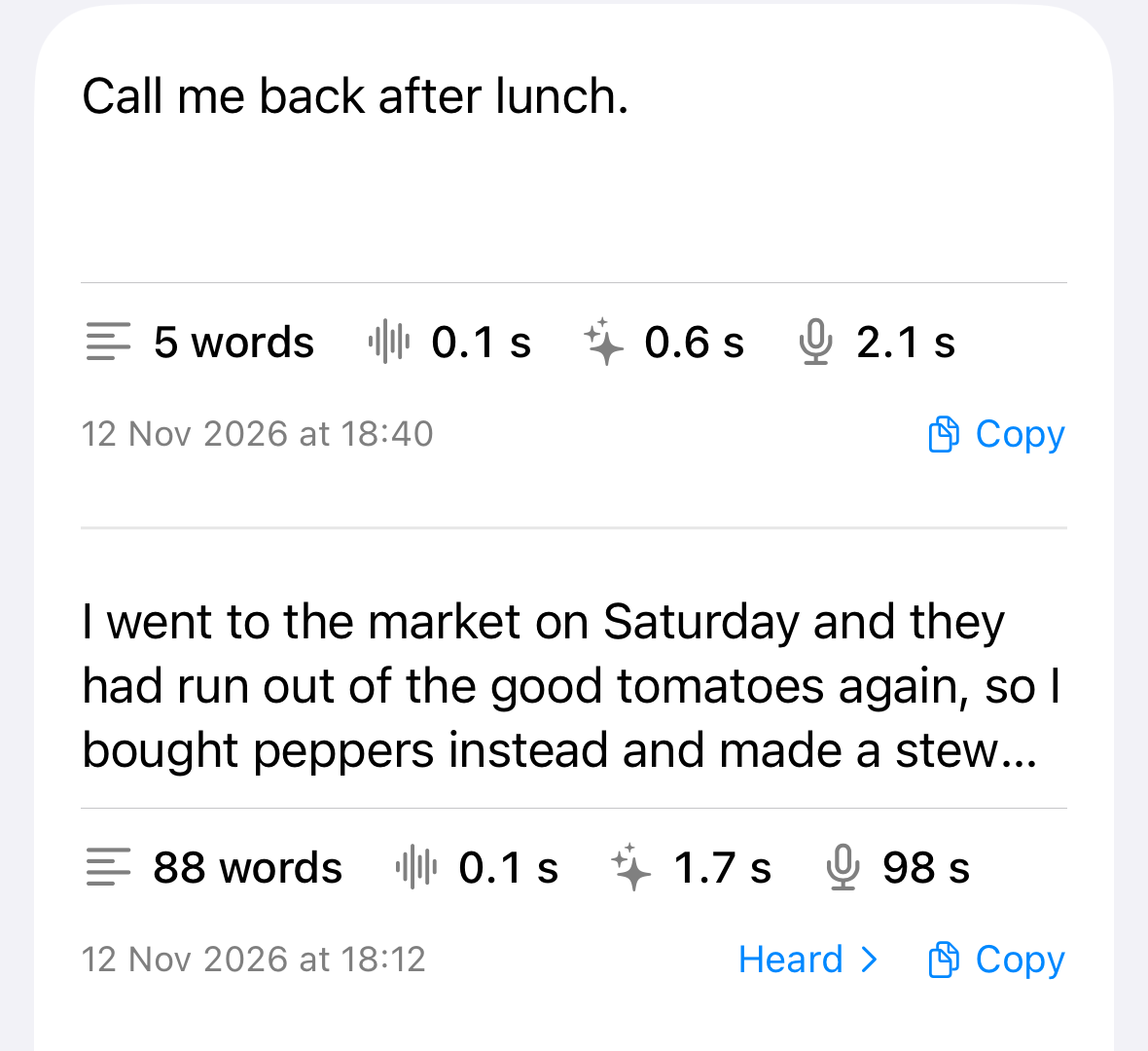
- History lists your dictations on this device, newest first, as cards of one height: three lines of text (tap the text to read all of it), then the number of words, how long speech and cleanup took and how long you spoke. Copy copies the text. Heard opens the words before cleanup and replacements changed them, where they did. Swipe left to delete. Export (the share button at the top) shares all of them as one file, one dictation per line; the stopwatch menu copies the timings and opens Compare cleanup.
- Speech language: English, Español, or Detect.
- Storage shows the space the speech model and your dictations take, with Delete speech model and Clear History. Audio is never saved; History keeps text only.
Typing
The keyboard does its own swiping, autocorrection and word suggestions, because iOS withholds Apple's from other keyboards. It has English (QWERTY) and Spanish (with ñ) layouts, suggests English and Spanish together unless you turn that off, offers accents on a long press, and moves the cursor when you hold the space bar and slide. Their settings are in the app's Keyboard section.
- Emoji: on Face ID iPhones the emoji key sits after 123, where Apple's keyboard has it, and opens v2t's emoji panel; long-press an emoji for skin tones and tap ABC to go back. iOS's own globe below the keys switches keyboards. Where iOS draws no globe (iPads, Touch ID iPhones), v2t shows its own globe with the emoji key after it. The panel has a Search Emoji field, and while you type, the suggestion bar's last slot offers the word's emoji (🍕 after "pizza").
- Words you keep: when autocorrect changes a word and you take yours back (delete, then tap it in the bar), v2t adds it to your dictionary if no word list knows it. Autocorrect then leaves it alone, and cleanup spells it too. Delete a typo kept by mistake in Dictionary.
- Hide the keyboard with the chevron at the right end of the suggestion bar (on the iPad, the hide key in the bottom row).
- Keyboard debug log: off unless you turn it on, in the app's Debugging section (TestFlight builds only). While it is on, a small red dot shows at the left of the suggestion bar and the keyboard records what you type with it (keys, swipes, suggestions, corrections, and the words themselves) to a file on your iPhone, so the keyboard's mistakes can be studied. Dictation is recorded by length only. Nothing leaves the iPhone unless you tap Export, and Clear log deletes it. It turns itself off after 24 hours, and never records in password, one-time-code or card fields. It needs Full Access, like dictation.
- Typing exercise: in Debugging, like a typing test: it shows ten short sentences one at a time to type with the v2t keyboard, then the words that came out different and your speed. It turns the debug log on for 24 hours if it is off, and records each sentence and what you typed beside the keyboard's log, so the keyboard's mistakes can be told from what you meant.
iOS limits every third-party keyboard, v2t's included:
- No text selection, edit menu or system undo. The space-bar cursor moves only left and right.
- Apple's keyboard takes over in password and phone-number fields, and in apps that refuse other keyboards.
- Key previews on the top row draw over the suggestion bar, not above the keyboard.
- A keyboard cannot use the microphone or open its own app on request, so the first dictation of a session goes through the v2t app.
- A keyboard never sees taps outside itself, so it cannot hide when you tap away; the app you type in decides that. Use the chevron.
- The globe and microphone below the keys on Face ID iPhones belong to iOS. v2t asks iOS to disable that microphone, since its own mic key dictates. Whether iOS then hides it or only greys it out has not been checked on a phone. If it still shows, Settings › General › Keyboard › Enable Dictation off removes it, for Apple's keyboard too.
Troubleshooting
The mic key does nothing. Full Access is off. Turn it on in Settings › v2t › Keyboards › Allow Full Access.
Tapping the mic opens the v2t app. It does that whenever no microphone session is on: on the first dictation, after the session times out, or after you close v2t from the app switcher. v2t is already listening; go back to your app and keep talking.
The text never appeared. v2t types the text once, into the field where you tapped Done. You can go to the v2t app and back before then. If you left the field before the text arrived, or tapped Cancel while recording, find the text in the app's History. Cancel after Done keeps nothing.
The orange dot stays on. The microphone session is waiting for your next dictation. Open v2t and tap Stop microphone session.
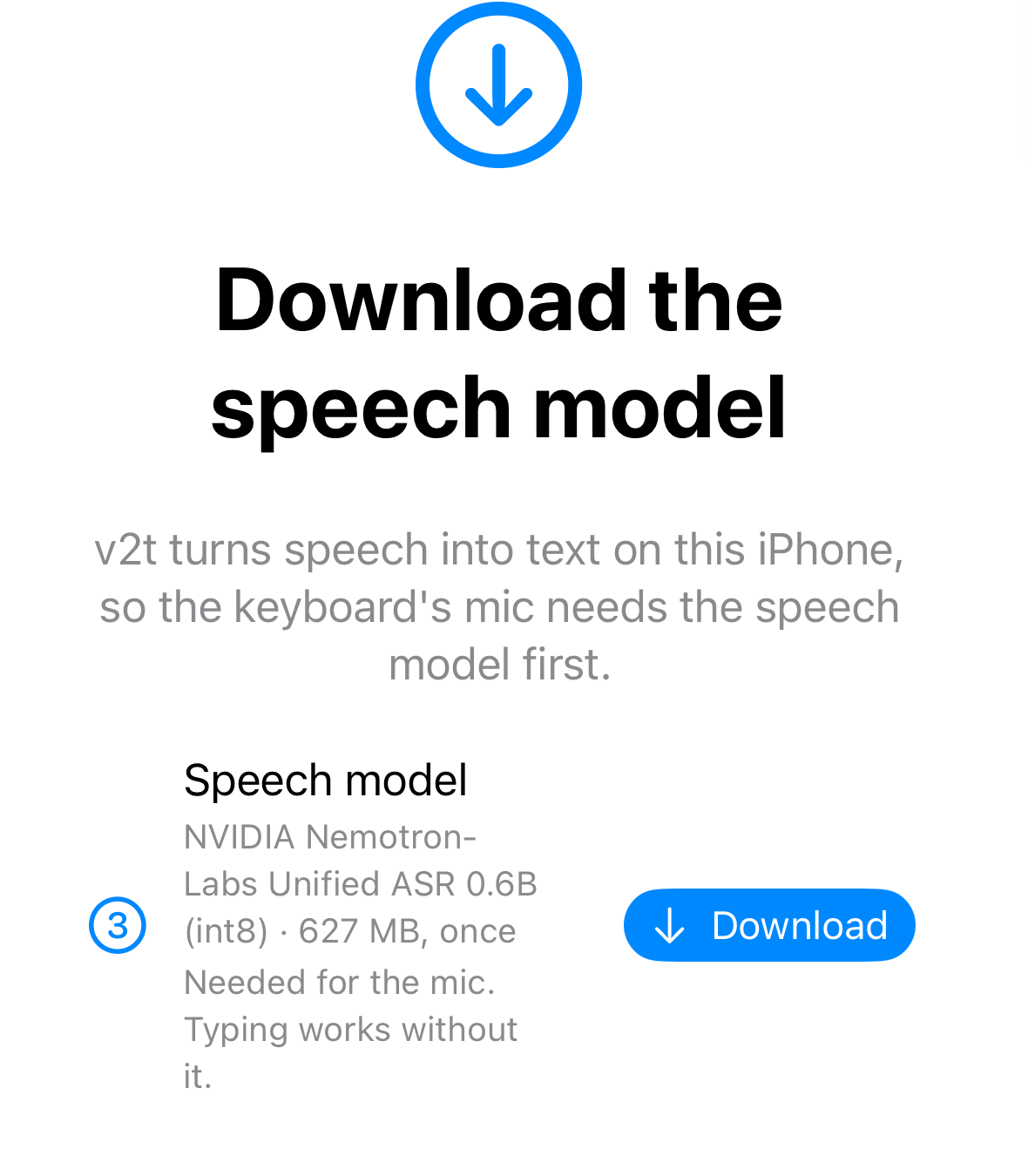
Tapping the mic opens v2t on "Download the speech model". The model isn't on this device yet, or was deleted. Tap Download, then go back to your app and tap the mic again.
Tapping the mic opens v2t on "Preparing the speech model". The first time the model loads after its download, v2t prepares it for this device, and the mic waits until that is done. Stay in v2t until it says the model is ready, then go back to your app and tap the mic again.
The speech model shows an error, or "The speech model didn't load". The download needs a network connection. Tap Try again once you're online.
Clean up with Apple Intelligence is greyed out. If it says this device can't run Apple Intelligence, cleanup will never be available on it: you get the words as heard, plus your replacements. Otherwise Apple Intelligence is off or still downloading. Turn it on in Settings › Apple Intelligence & Siri, then reopen v2t. Until then you get the words as heard, plus your replacements.
Apple's keyboard appears instead of v2t's. iOS does that in password and phone-number fields and in apps that refuse other keyboards. v2t cannot change it.
How well it works
Each part was measured separately, and the gaps are listed too. Details and sources: Benchmarks on the iPhone.
- Transcription: speech models timed and scored on one iPhone 16 Pro, in a benchmark app.
- Cleanup: Apple Intelligence scored on the same iPhone 16 Pro, also in a benchmark app.
- Keyboard: swipe accuracy comes from simulated touches, autocorrect from checks against Apple's keyboard and lists of real misspellings, and the typing rules from tests in the iPhone Simulator. Nobody has measured accuracy with real fingers, or anything on an iPad.
Build it yourself
To build, test and sign the app, see ios/README.md.